Log QSOs
The QSO logger saves contacts on your computer. Logging continues without a network connection.
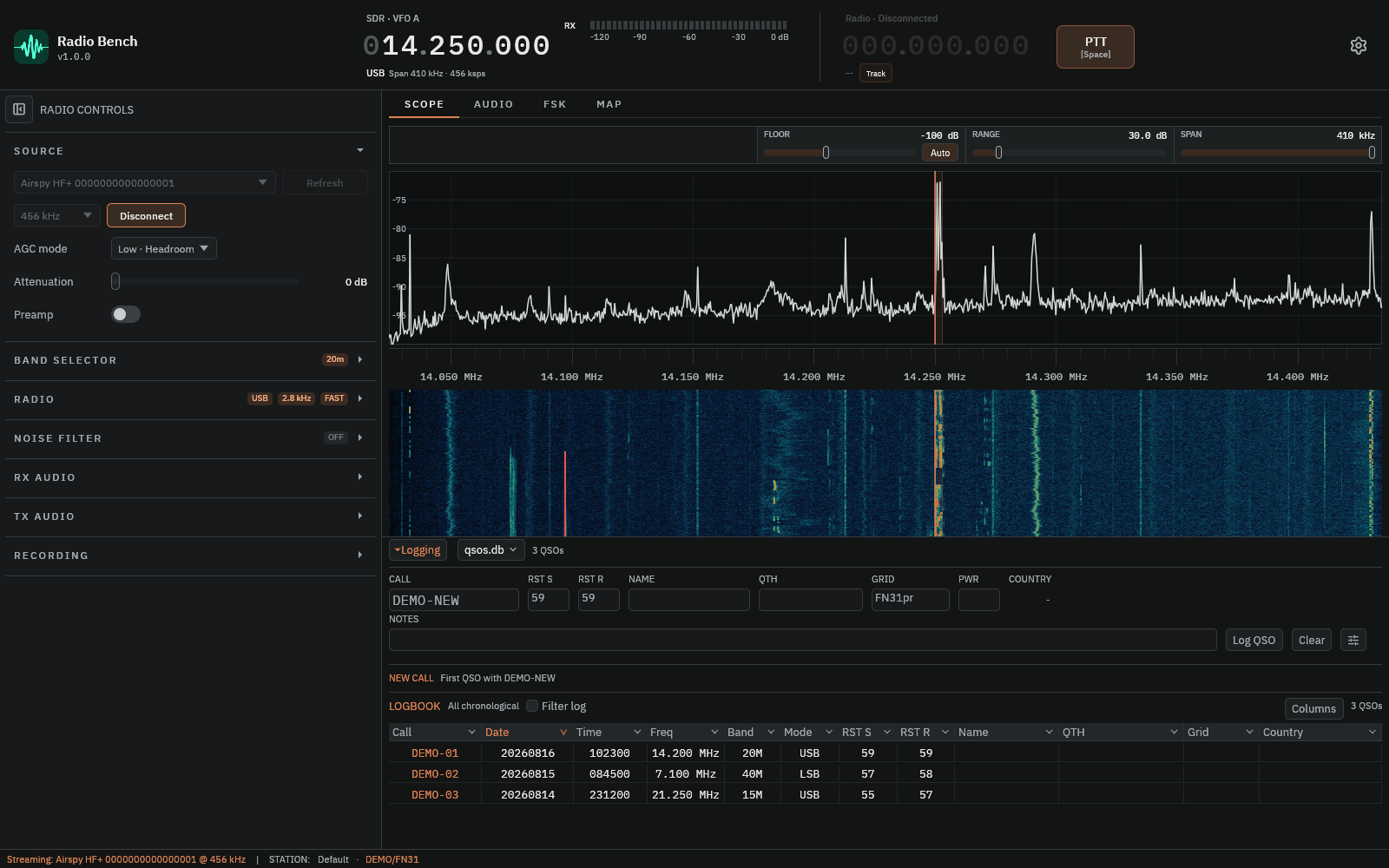
Add a contact
First select the logbook that should receive the contact.
The logbook name at the top of the drawer opens its file menu.
- Open the
Loggingdrawer below the workspace. - Select the logbook name to open its menu.
- Select
Open logbook…for an existing database, orNew logbook…for a new one. - Confirm the active logbook name at the top of the drawer.
- Enter the contacted callsign and reports, then check the time, frequency, and mode.
- Review station details, then select
Log QSO, or pressEnterin an entry bar field.
Station profile details can fill related fields. Check the entry before saving, especially after changing the active station profile.
Enter in the entry bar logs the contact immediately. If you loaded a contact for editing, Enter updates that contact. Tab moves between fields without logging.
Select an existing row to load it for editing. Review your changes and select Update. Use Clear to leave the loaded entry and prepare a new one.
Selecting another contact protects an unsaved entry. Choose Keep editing to retain it, or Discard and open to load the selected contact.
Edit contest details
Contacts imported with contest data show a Contest exchange group when you load them for editing. It holds Contest ID, Serial sent, Serial received, Exchange sent, and Exchange received. Ordinary entries do not show this group. Enter does not save from these fields. Select Update after you change them.
Change the logbook display
Open Settings > Logbook to choose the visible columns, sort order, and frequency, date, time, and power formats. Default folder sets where new logbooks are created.
Switch or locate a logbook
Open the logbook menu to choose another logbook or a recent entry. Show logbook folder opens the active database folder in your file manager. Logbook settings… opens its Settings page.
Switching changes the active contact database. It does not merge the two logbooks. If an entry is unsaved, choose Keep editing or Discard and switch.
The active logbook also supplies map contacts and the FSK recent-contact markers.
Find contacts
Use search and filters to narrow the log. Country and DXCC information comes from the callsign resolution data in Radio Bench.
Filter log limits the table to the callsign in the entry. Column headers provide additional filters and sorting. Clear filters when a known contact appears missing.
Entering a callsign also shows previous-contact information from the active logbook. Use it to check whether you have worked the station before.
Delete a contact
Right-click a contact row and select Delete QSO. Deletion takes effect immediately. Select Undo in the notification to restore the contact while that action remains visible.
Undo applies to the most recent deletion. Check each deletion before deleting another contact.
Look up callsign details
Local country and DXCC resolution does not need a network connection. It does not establish the contacted person's name, address, or exact station location.
Radio Bench can look up a callsign with QRZ or HamQTH.
- Open
Settings>Logbook>CALLSIGN LOOKUP. - Select the
Service. - Enter your
UsernameandPasswordfor that service.
QRZ needs an XML Logbook Data subscription for full results. HamQTH needs a free account. Radio Bench keeps separate credentials for each service and sends them only to that service.
Passwords are saved in the operating system credential store: Keychain on macOS, Credential Manager on Windows, or the Secret Service keyring on Linux. They are not written to the settings file. If the store is locked or unavailable, Settings shows a warning. Unlock the store and try again.
A new entry looks up a valid callsign shortly after you stop typing. Select Lookup to request it yourself, or Retry lookup after a failure. A lookup fills empty name, QTH, and grid fields. It does not replace values that you entered.
Saved contacts are not looked up automatically. Select Lookup while you review one. Online lookup needs a network connection. Check the returned details before you save the contact.
Import and export ADIF
Imports show a preview before adding contacts.
- Open the logbook menu and select
Import ADIF…. - Select the ADIF file.
- Check the destination logbook, new contacts, skipped duplicates, date range, and bands.
- Select the import button showing the new QSO count, or select
Cancelto leave the logbook unchanged.
If every record is already present, the preview shows Nothing to import. Close it to return to the logbook. Review imported contacts before deleting the original file.
Use Export ADIF… in the logbook menu for contact transfer or an additional contact backup.
When filters are active, choose Current view to export matching contacts or All QSOs for the complete logbook. Select Choose file…, then choose the destination. Without filters, export goes directly to the file dialog.
Keep periodic exports in a location separate from the computer. ADIF is not a complete application-settings backup.
To copy the native database, select Show logbook folder, then close Radio Bench before copying it. Preserve the original until you have checked the copy.
See maps to display resolved contact locations.
FT8/FT4 logging
The FSK workspace can prompt after a completed report exchange. Choose Log, Later, or Discard. See log an FT8/FT4 contact for deferred contacts and the Prompt to log setting.