Profiles and settings reference
Radio Bench stores application settings between sessions. It remembers settings for each source, while station profiles keep details for a particular station.
Find a setting
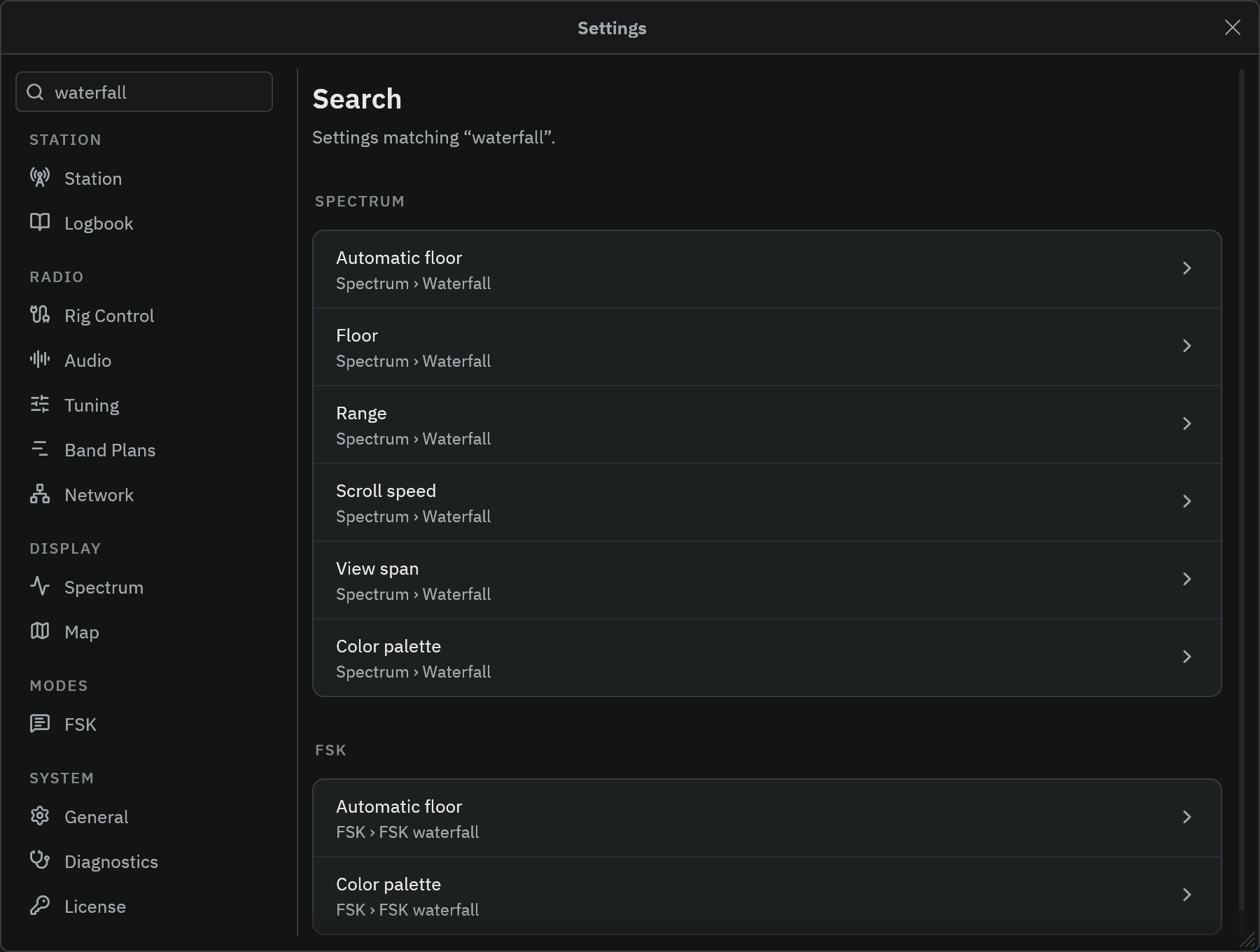
Open Settings with the button at the top right. Use the search field at the top of the sidebar, or press Ctrl+F (Cmd+F on macOS). Select a result to open its page and highlight the setting.
Each page starts with a short description, and each setting has a one-line explanation beside it.
Station profiles
Open Settings > Station to create, copy, rename, or delete a profile. Use separate profiles for home, portable, or remote stations.
A profile holds callsign, operator, grid, transmit power, radio and antenna descriptions, QTH, country, and home coordinates. Review the active profile before you log or transmit.
A station profile is not a complete receiver preset. It does not bundle source connections, audio devices, CAT settings, or every processing control. Those have separate persistent settings.
Source settings
Radio Bench remembers controls for each source. Each Airspy receiver keeps its own settings through its device serial. Source controls are on the left of the workspace, not in Settings.
Settings pages
The sidebar groups the pages under Station, Radio, Display, Modes, and System.
Station group
| Page | Contents | Guide |
|---|---|---|
Station |
Active profile, callsign, operator, grid locator, TX power, radio, antenna, QTH, and country. | Station profiles |
Logbook |
Current logbook and default folder, log display formats, visible columns, and callsign lookup. | Log QSOs |
Radio group
| Page | Contents | Guide |
|---|---|---|
Rig Control |
Hamlib connection, serial options, rig mode preference, meters, and the low-voltage alert. | CAT rig control |
Audio |
Receive output, rig receiver, transmit output, microphone, and device list. | Audio |
Tuning |
Automatic sideband, filter roll-off, snap to grid, and transverter offset. | Tuning preferences |
Band Plans |
The displayed band plan and the custom plan library. | Band plans |
Network |
Receive buffer preset and live buffer status. | Network buffering |
Display group
| Page | Contents | Guide |
|---|---|---|
Spectrum |
Waterfall floor, range, scroll speed, span, and palette. Trace smoothing, peak hold, RX level bar, and appearance. | Spectrum and waterfall |
Map |
Style presets, basemap and tile cache, colors, legend, labels, and detailed formatting. | Maps |
Modes group
| Page | Contents | Guide |
|---|---|---|
FSK |
FT8/FT4 decoding, FSK waterfall, automatic exchange, CQ replies, retry limits, and logging prompt. | FSK settings |
System group
| Page | Contents | Guide |
|---|---|---|
General |
Distance units, PTT shortcut, reduce motion, setup wizard, updates, and the About card. | General |
Diagnostics |
Component health, support report, and detailed diagnostics. | Support reports |
License |
Trial and license state, activation, deactivation, and purchase. | Licensing |
General
| Control | Purpose |
|---|---|
Distance units |
Units for path lengths on the map and in the log. |
PTT shortcut |
The key that toggles ordinary PTT. See keyboard controls. |
Reduce motion |
Opens and closes the sidebar instantly. On macOS and Windows, the system reduced-motion setting is also followed. |
Setup wizard |
Runs the guided station review again. |
UPDATES |
Checks for a newer release. See install an update. |
ABOUT |
Shows the version. Opens the documentation, support, privacy policy, and third-party notices. |
FSK
Open Settings > FSK for decoding, waterfall, and automatic exchange preferences.
| Control | Purpose |
|---|---|
| AP decoding | Uses known exchange information to assist decoding. |
| Decode depth | Selects Normal (2) or Thorough (3). Thorough decoding can require more processing. |
| Wide decode | Expands the decode range to 0–5 kHz. TX offset limits stay unchanged. |
| FSK waterfall | Saves its own floor, range, Auto floor, and palette, separately from RF. |
| Automatic exchange | Sets initial reply, acknowledgment, and courtesy 73 separately for FT8 and FT4. |
| Auto-reply and Choose caller | Controls replies to your CQ and the caller selection rule. |
| Retry limits | Limits additional CQ and contact-response transmissions. |
| Prompt to log | Prompts after a completed report exchange. |
See configure automatic exchanges for defaults.
Where settings are stored
Settings, band plans, logbooks, and recordings are stored in your user folders. See Find and back up your data.