Understand the workspace
The main workspace keeps receiver controls, signal displays, station tools, and status information in one window.
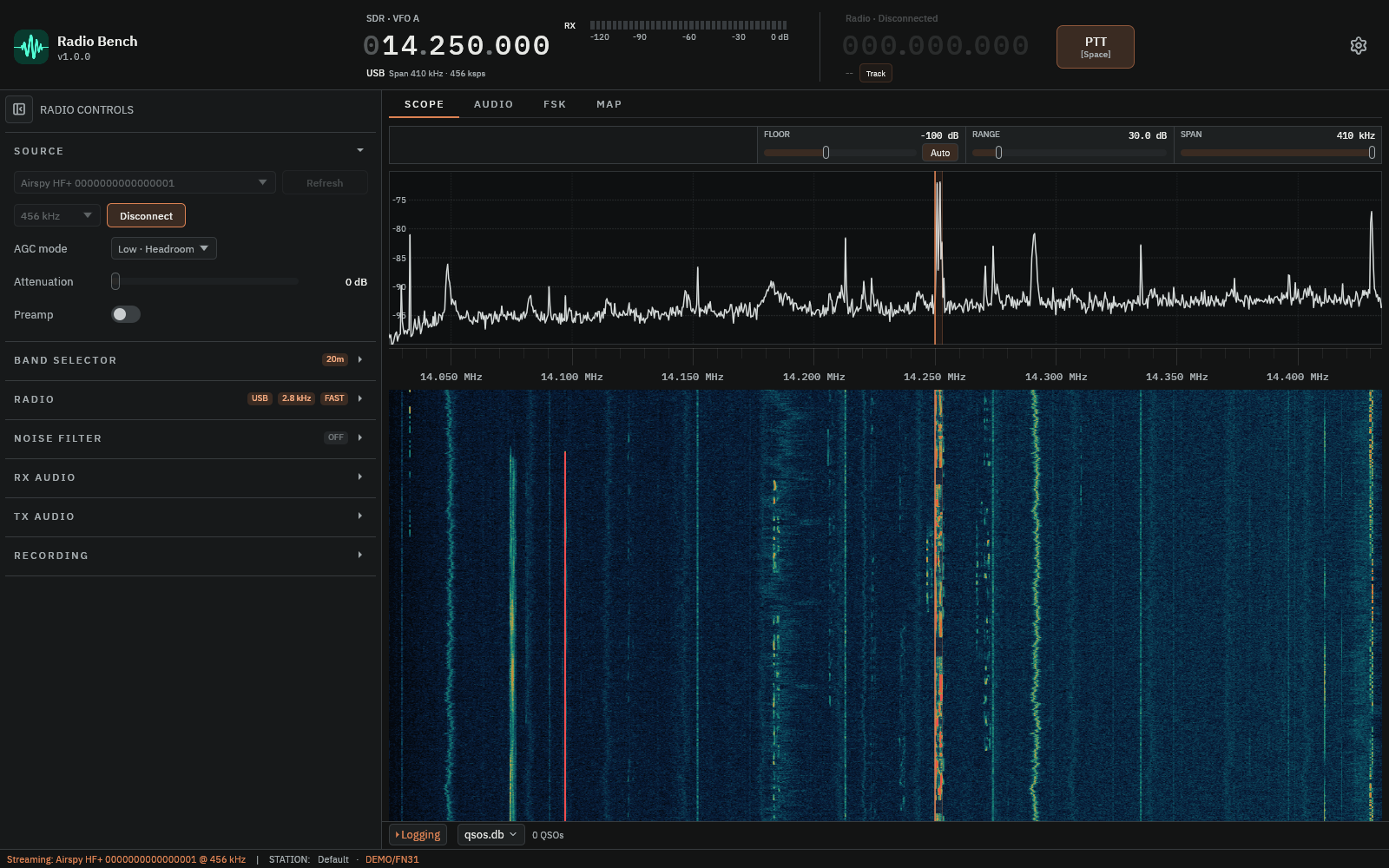
Signal display
The spectrum and waterfall show the selected view. A local SDR supplies the capture behind that view. KiwiSDR can supply a separate, wider remote display. Select or drag in the display to tune. The VFO marker shows the tuned frequency and receiver passband.
See spectrum and waterfall for display controls and interpretation.
Control column
The left column holds collapsible sections. SOURCE selects and starts the SDR, and RADIO selects mode, passband, AGC, and receiver processing.
BAND SELECTOR, NOISE FILTER, RX AUDIO, TX AUDIO, and RECORDING hold the remaining receiver and station controls. Select a section header to open it.
Processing features with a switch show their settings only when enabled. PASS-BAND, AGC, and CW BFO start folded. Open the group to adjust its controls.
Tabs and station tools
The SCOPE, AUDIO, and MAP tabs change the main display. The QSO logger opens as a drawer below the display.
The top bar holds the frequency display, the rig readout, and the PTT control. Open Settings with the button at the top right.
Read the workspace from top to bottom: VFO and rig state, workspace tabs, signal display, Logging drawer, then status bar. Use the left controls to change the source or processing behind that display.
Track and Fixed describe CAT tuning behavior. TX ACTIVE and VOX ACTIVE describe different transmit states. Read transmit status before treating either as an RF measurement.
Status information
The status bar reports streaming, recording, CAT, and diagnostic state. A notification explains an action that failed or needs attention.
Open Settings to configure the application. Settings persist between sessions. See the settings reference for every page.
Find a setting
The Settings sidebar groups its pages under Station, Radio, Display, Modes, and System. Each setting has a short description beside it.
- Open
Settingsat the top right. - Select
Search settings, or pressCtrl+F(Cmd+Fon macOS). - Enter a setting name or related word, such as
waterfallorcallsign. - Select a result to open its page and locate the matching control.
Clear the search to return to browsing. With the search field focused, Escape clears it. Selecting a page in the sidebar also clears the search.
FSK workspace
The FSK tab supports FT8 and FT4. It combines an audio waterfall, decoded activity and a contact card. RF Scope and Audio remain available during FSK operation.
See the FT8/FT4 guide before operating the scheduled transmit controls.