Record and replay signals
Radio Bench can record decoded audio or raw IQ samples. Both are saved as WAV files and can require substantial disk space.
Choose what to keep
| Choice | What it preserves | Use it for |
|---|---|---|
| Audio | The decoded receiver audio, in one channel | Listening again or sharing the received program. |
| IQ | Two channels of in-phase and quadrature samples across the capture span | Tuning and demodulating the same captured signals again. |
Audio does not preserve other signals outside the selected receive passband. IQ preserves the capture span, including signals outside the displayed view.
WAV16 uses 16-bit PCM. WAV32 uses 32-bit floating-point samples and takes twice the storage at the same rate. Choose WAV16 for smaller files, or WAV32 to retain floating-point samples for later processing.
Estimate bytes per minute as sample rate × channels × bytes per sample × 60.
| Example | WAV16 | WAV32 |
|---|---|---|
| Mono audio at 48 kHz | 5.76 MB/min | 11.52 MB/min |
| Stereo IQ at 1.024 MS/s | 245.76 MB/min | 491.52 MB/min |
These are decimal megabytes, excluding small headers. The active audio rate can depend on the output device. IQ uses the source sample rate.
Choose a recording folder
Open the RECORDING section in the left control column and select Folder. Until you choose another location, Radio Bench saves recordings in your Downloads folder, or in your home folder if there is no Downloads folder.
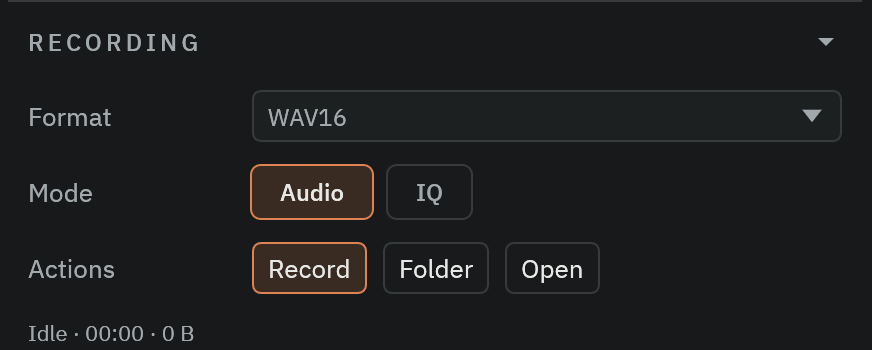
Confirm that the destination has enough free space. IQ files grow much faster than audio files.
Open reveals the recording folder in your file manager. It does not start playback.
Start a recording
- Start the SDR stream.
- Select
AudioorIQunderMode. - Select
WAV16orWAV32underFormat. - Select
Record.
Stop the recording before you close the source. Radio Bench also finalizes an active recording during a normal application shutdown.
Tuning during recording
IQ recording locks VFO retuning, including moves within the capture. Ordinary RF pan and zoom are also blocked. The message is Stop IQ recording before retuning.
Select Stop, change the tuning, then start a new recording. Audio recording does not use this IQ tuning lock.
The Audio workspace has a separate microphone preview recorder. It keeps a short take for processing comparisons, not an Audio or IQ WAV file. See speech preview.
Replay IQ
Select the IQ File source, then choose a supported stereo IQ file. Metadata can restore center frequency and sample rate.
Use playback to examine a signal again without connected hardware. Playback stops at the end of the file unless you turn on Loop Playback.