Operate FT8 and FT4
Availability
FT8 and FT4 are included from Radio Bench 0.9.0-beta.1. The screenshots use simulated activity. No radio is transmitting.
The FSK workspace supports FT8 and FT4. It does not provide a general RTTY or other FSK modem.
Prepare your station
- Open
Settings>Station. Check the active station callsign and Maidenhead grid. - Enable automatic clock synchronisation in your operating system. Check the clock before operating.
- Connect and start a supported receive source.
- For transmission, configure the radio audio output and CAT rig control.
- Check the radio data input, transmit drive, frequency, antenna, and local operating permission.
FT8 uses 15-second slots. FT4 uses 7.5-second slots. A clock error can prevent reception or place transmissions in the wrong slot.
Remain present and supervise every exchange. Robotic or unattended FT8/FT4 QSOs are not permitted in Radio Bench. Automatic replies and sequencing assist the operator during an exchange.
Select a protocol and band
Open FSK, then select FT8 or FT4 and a band. Wait for the receiver profile change to finish before starting a contact.
The selected band supplies the protocol dial frequency. With CAT tracking enabled, the FSK profile controls the rig dial. Turning the rig dial can cause Radio Bench to restore the selected FSK frequency. Band selection is disabled during transmission.
Check the actual rig frequency and data mode before transmitting. Band presets do not enforce your license privileges or local band limits.
Read the activity display
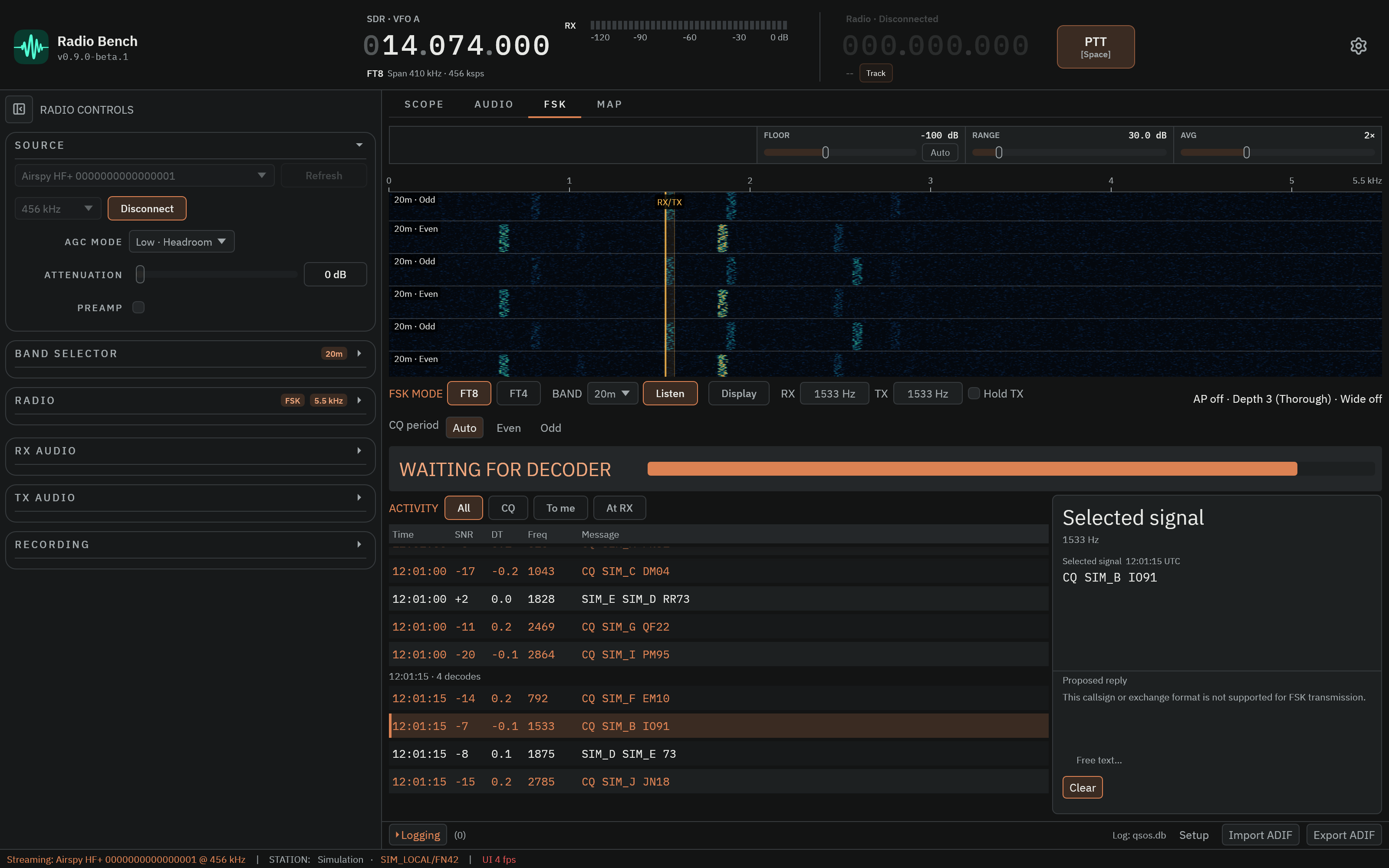
The waterfall shows received audio frequencies. The activity list contains decoded messages, signal reports, timing differences, and audio offsets. Use the activity filters to find CQ calls or messages addressed to your station.
SNR is the estimated signal-to-noise ratio. DT is the received timing offset. A timing offset can come from either station. It does not prove that your computer clock is wrong.
Some decoded messages cannot be used for an automatic reply. Select a supported message and read the contact card before confirming transmission.
The Listen control lets you hear received audio. It is off by default and does not need to be on for decoding.
The activity list marks stations logged within the last 24 hours on the same band and mode. The marker uses the active logbook. It does not prevent a reply.
Adjust the FSK waterfall
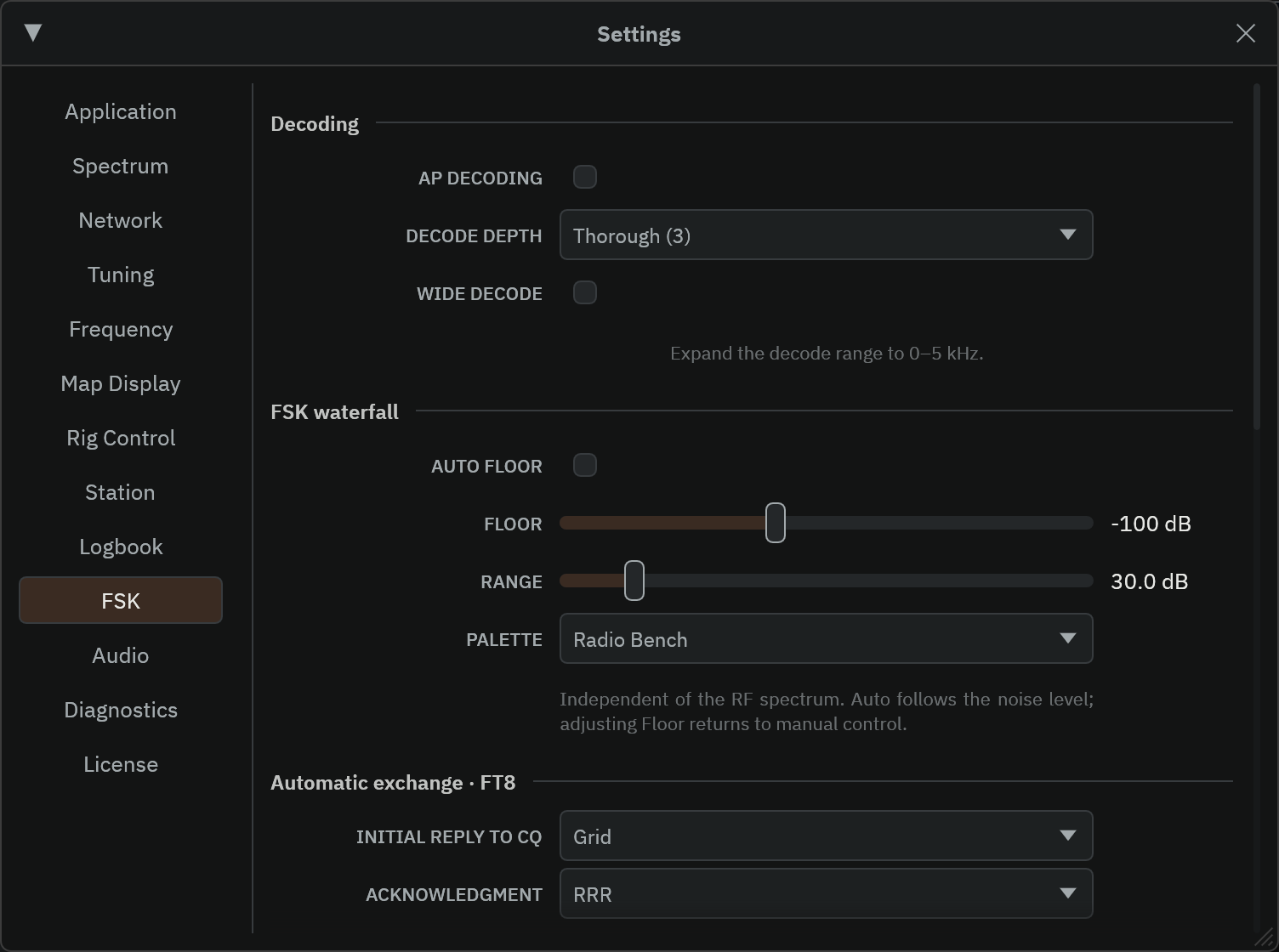
FSK has its own FLOOR, RANGE and palette. These settings are saved separately from the RF display. Open Settings > FSK for the palette and Auto floor controls.
Select Auto beside Floor to follow the received background level. It uses the active receive passband and holds during transmission or missing data. It does not change receiver gain or decoding.
Turn Auto off to hold the current floor. Moving Floor also turns Auto off. Range remains manual.
Use AVG to average received power across several waterfall rows. Averaging can make weak signals easier to see. It does not change decoding or the five-row-per-second waterfall speed.
The RF Scope and Audio workspaces remain available during FSK operation. Returning to FSK preserves its waterfall history.
Set receive and transmit offsets
Click the waterfall to set RX. Hold Shift and click to set TX. You can also drag either marker or enter the offset below the waterfall. RX and TX controls accept 200–2800 Hz.
These controls change audio offsets within the passband. They do not change the radio dial frequency.
Hold TX is off by default. When you start a reply, TX follows the selected station unless Hold TX is on. Replies addressed to your callsign retain your TX offset. Automatic exchange updates also retain it.
An offset change applies to the next prepared transmission. A transmission already queued or on air keeps its prepared offset.
Call CQ or answer a station
To call CQ, review Your CQ in the contact card and select Call CQ. Choose Auto, Even or Odd to set the CQ period. Replies use the period opposite the other station.
To answer a station, select its decoded message and review Proposed reply. Select Reply to that station to confirm. Double-clicking an eligible decode can start a reply directly.
A confirmed action arms scheduled transmission. Read the slot display and contact status. Do not use ordinary voice PTT to start a timed exchange.
Auto-reply is on by default. While calling CQ, Radio Bench chooses the strongest caller from the first actionable reply batch. You can choose the first decoded or weakest caller instead. With auto-reply off, double-click a caller to answer.
Follow or adjust an exchange
The contact card shows the received and sent exchange, the next message and the current status. Repeated transmissions are grouped. Open their details to see individual times.
Open Change message… to repeat or change the next exchange step. The menu marks messages Sent, Next, Later or Available. A manual choice is a one-message override.
Use Pause to pause the automatic exchange while retaining the contact. Use Resume contact when ready to continue. Selecting a message does not restart a stopped contact. A manual choice is retained until transmitted, then automatic sequencing can continue.
Open Free text…, enter up to 13 characters and select Send once. Use letters, digits, spaces or + - . / ?. Typing does not transmit.
Sending free text pauses the automatic exchange. Review the card before resuming. Free text does not supply the reports needed to complete a logged QSO.
Configure automatic exchanges
Open Settings > FSK. FT8 and FT4 have separate initial-reply, acknowledgment, and courtesy-message preferences. New contacts use the preferences selected when they start.
| Setting | Default or effect |
|---|---|
| Initial reply to CQ | Grid, for both protocols. Signal report is also available. |
| Acknowledgment | FT8 uses RRR. FT4 uses RR73. |
| Courtesy 73 | Enabled after receiving RR73, for both protocols. |
| CQ retries | Three additional transmissions after the first CQ. |
| Contact response retries | Three additional transmissions after the first message. The count resets when the exchange advances. |
Retry limits accept 0–99. Zero sends once. Reaching a limit halts the sequence. A missed transmission start has separate recovery behaviour.
Supported messages
Automatic contacts use supported standard exchanges. Type-2 portable /P and other unsupported exchange formats remain receive-only. The contact card explains when a selected decode cannot start a reply.
Radio Bench does not provide Split or Fake It frequency compensation. Check transmit drive and the radio ALC indication.
Stop transmission
Use Halt to stop the FSK exchange and cancel scheduled transmission. While a guided contact is live, the top-bar PTT control and its shortcut also halt it. Confirm that the rig releases PTT. Review the station state before starting another contact.
If CAT or audio fails, read the error and restore the connection before retrying. Do not assume a stopped contact will resume automatically.
Log a contact
Prompt to log is on by default. A completed report exchange produces a record to review. Select Log, Later, or Discard.
Later retains the contact for this session. Save it before closing the app. Logging an older contact does not stop the current exchange. Turning prompts off leaves manual logging available.
Starting the final acknowledgment does not by itself complete a QSO. Review the recorded reports and completion status before saving. See QSO logging.
Resolve reception and timing problems
| Symptom | Check |
|---|---|
| No FSK tab | Check the installed version. FSK requires Radio Bench 0.9.0-beta.1 or later. |
| Decoder missing or fails to start | Use a complete Radio Bench installation. Keep the bundled helper with the app. Include the error in a support report. |
| Signals visible but no decodes | Check FT8 versus FT4, the band dial, computer clock, receive source, and clipping. Allow a complete receive slot. |
| Wrong frequency or profile change failure | Read the profile error. Check source tuning limits and CAT. Retry the profile before starting a contact. |
| PTT with no transmitted audio | Check the selected TX device and the transceiver data input. |
| Missed slots or repeated timing errors | Check clock synchronisation, computer load, and audio-device stability. |
| No logging prompt | Check Prompt to log and whether the report exchange completed. |
Decoding runs locally in the bundled ftdecode helper. Decoder audio and results pass between programs on your computer. The decoder does not upload them to a cloud service.
For persistent problems, create a support report. Include the protocol, band, source, radio, audio device, and the failed action.